What a Neighborhood Mayor does
A Neighborhood Mayor is a volunteer who checks and updates one neighborhood's pages on Little Milwaukee. You check places you know, fix wrong facts, add events, and decide on the changes neighbors send in.
An example: "Steve is the Mayor of Greendale. Last week he added the Greendale Farmers Market, fixed a bakery's hours, and approved two events people sent in."
The screenshots below come from a test Mayor, Sam Sample, in a test neighborhood called Sample Heights. Your screens show your own neighborhood.
Getting started
Apply
Open Neighborhood Mayors, find your neighborhood and choose Apply. You can also use the Apply to be Neighborhood Mayor button on your neighborhood's page.
The form asks for your name, email address, phone number and street address, how long you have lived there, what you do in the neighborhood today, what you would do in your first 90 days, how many hours a month you can give, and two references. Only the editor reads your answers.
A neighborhood can have up to three Mayors.
Wait for the email
The editor reads every application by hand, so there is no fixed wait. Nothing is accepted automatically.
The reply comes by email with the subject "Your Neighborhood Mayor application". If you are accepted, it says: "You are now a Neighborhood Mayor of" your neighborhood, and it tells you to sign in with the same email address.
Sign in
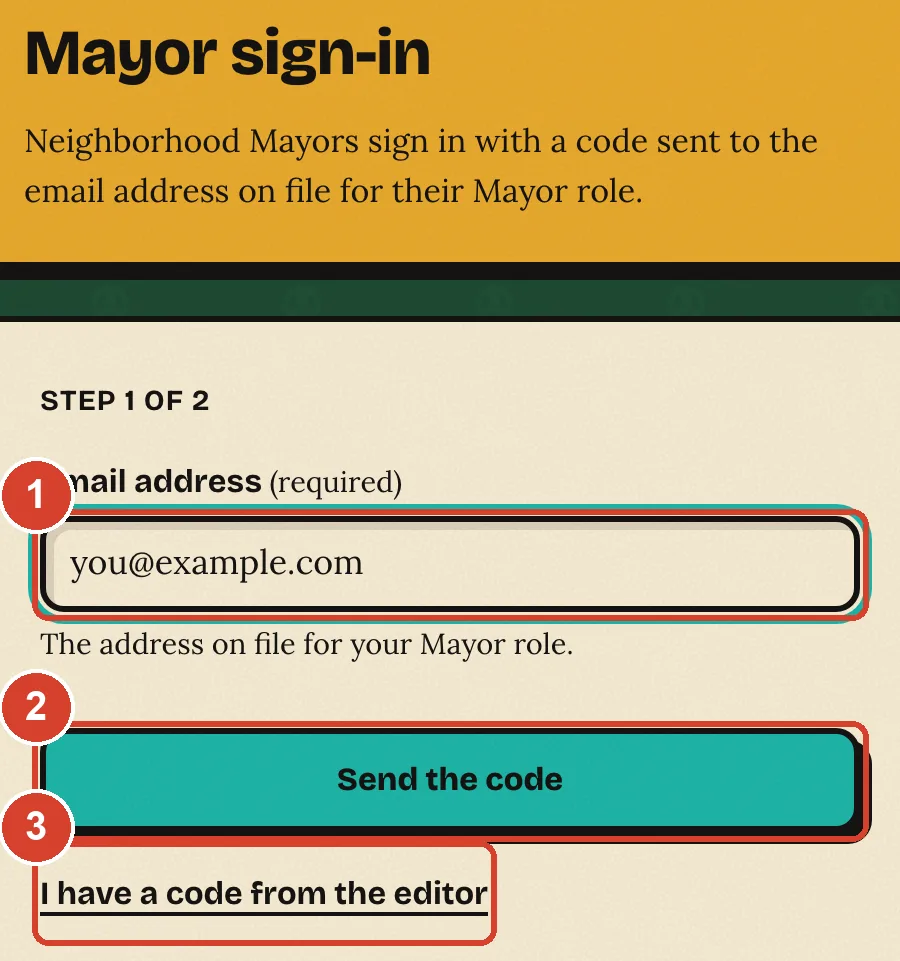
- Go to Mayor sign-in.
- Type the email address you applied with and choose Send the code.
- Check your email for a six-digit code. It works for 15 minutes, and you get three tries.
- Type the code and choose Sign in. Your Mayor desk opens.
No email? Ask the editor for a code, then choose I have a code from the editor and type it in. Do this before you choose Send the code, because a new code replaces the editor's.
Add your badge photo
The first time you sign in, your desk shows one form: Your badge photo. Your photo, your name and your neighborhood become your Mayoral Badge, and it shows on your neighborhood's pages.
- Choose a photo of yourself: JPEG, PNG or HEIC, up to 4 MB. It is cropped to a square, and the place it was taken is removed.
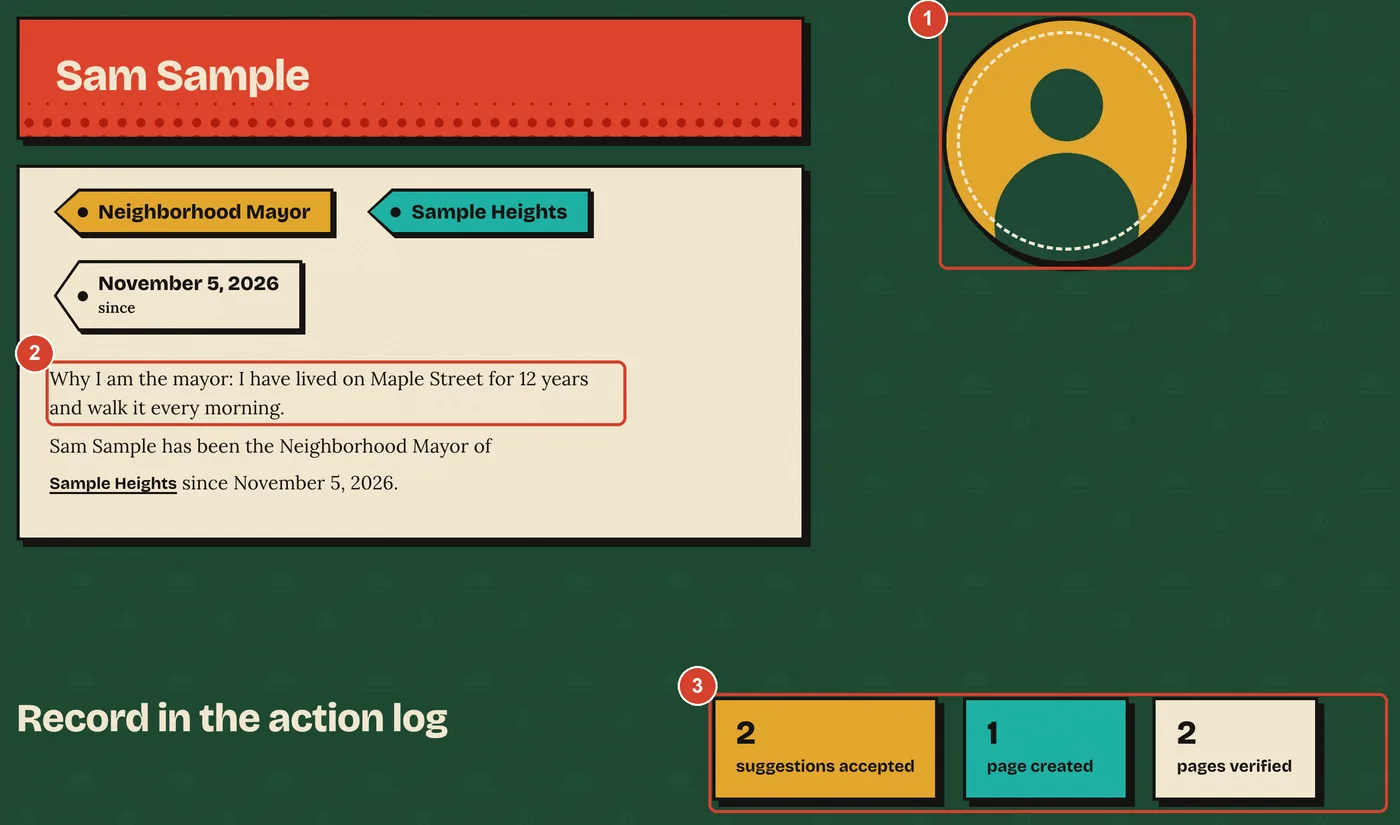
- If you like, write one line under Why I am the mayor, up to 140 characters. For example: "I have lived on Maple Street for 12 years and walk it every morning."
- Check the box that says you agree the photo can appear with your name.
- Choose Save my badge photo.
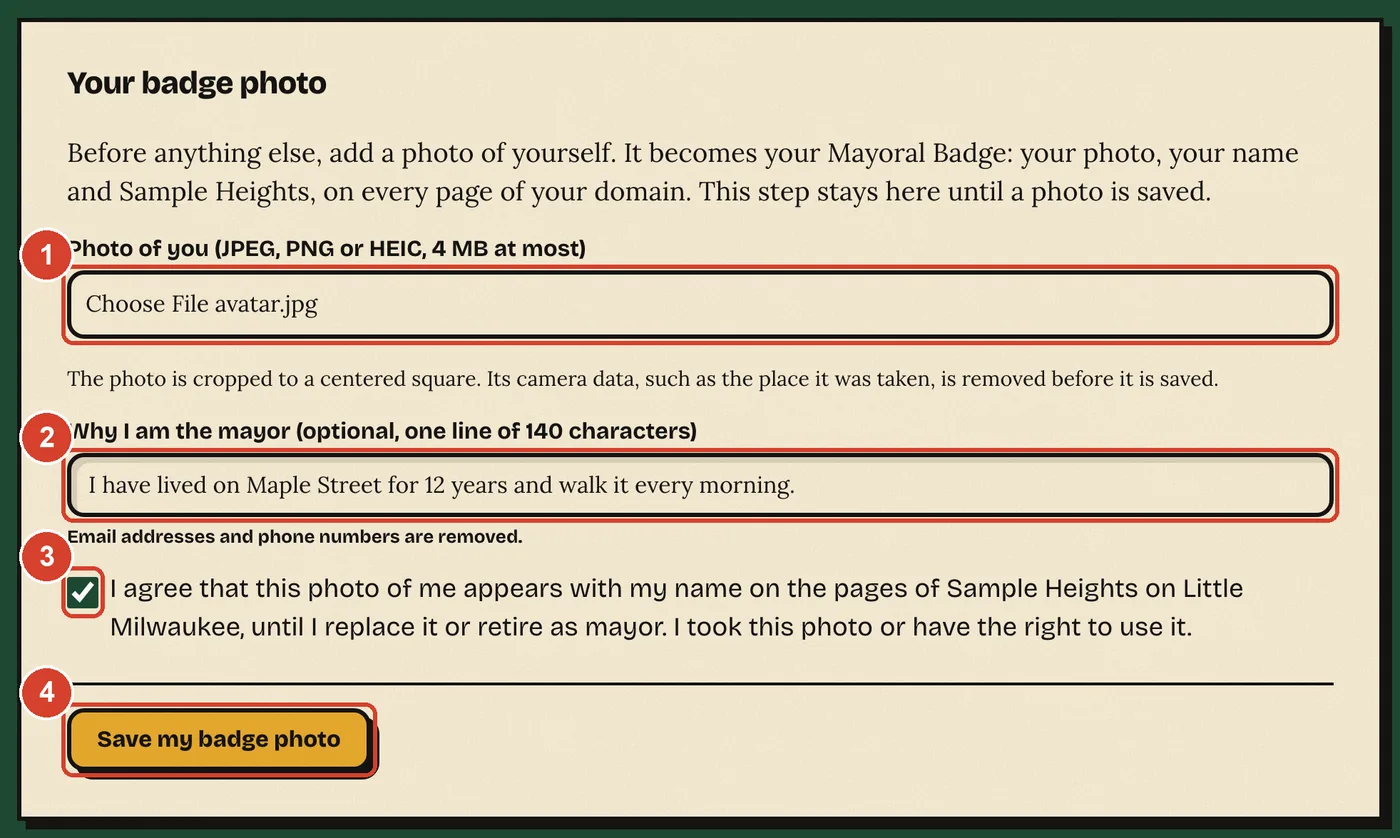
To change the photo later, open Settings on your desk.
Choose a public name
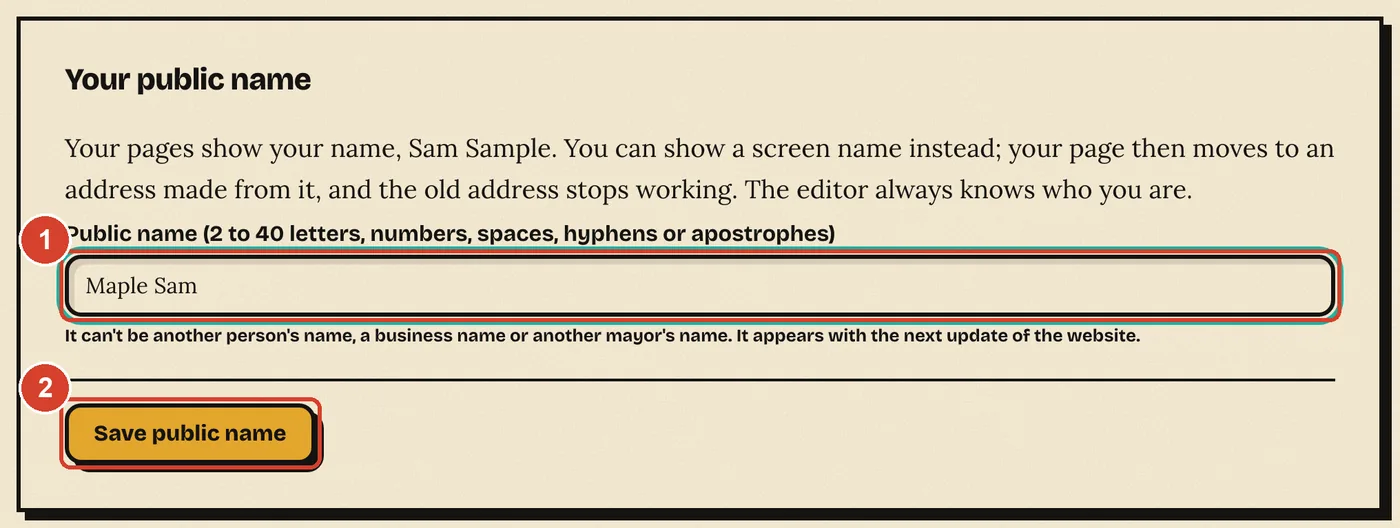
Your pages show your real name unless you pick a public name. A public name is a screen name, such as "Maple Sam". The editor still knows who you are.
- Open Settings on your desk.
- Under Your public name, type 2 to 40 letters, numbers, spaces, hyphens or apostrophes.
- Choose Save public name.
It can't be another person's name, a business name or another Mayor's name. Your public page moves to an address made from the new name, and the old address stops working. To go back, choose Show my name instead. You can also give a public name on the application.
Your first week
Do these five things in your first week. Each item links to its how-to section.
- Look over your neighborhood's page as a visitor would. Note anything that looks wrong or missing.
- Check five businesses you know. Open each one under Places on your desk and compare its hours and phone number with the sign on the door or the business's own website. How to fix hours or a phone number.
- Open your Inbox and approve or decline what people sent. How to decide on an event and how to answer a suggestion.
- Add one event in your neighborhood. How to add an event.
- Say hi on the Mayor message board. How to use the board.
How to do each task
Your desk has an Inbox and a list of areas on the left: Pages, Places, Events, Neighborhoods, Collections, Answers, Media, Feeds, Mayors, Messages and Settings. On a phone the areas show as a row of links at the top.
Approve or decline an event someone sent
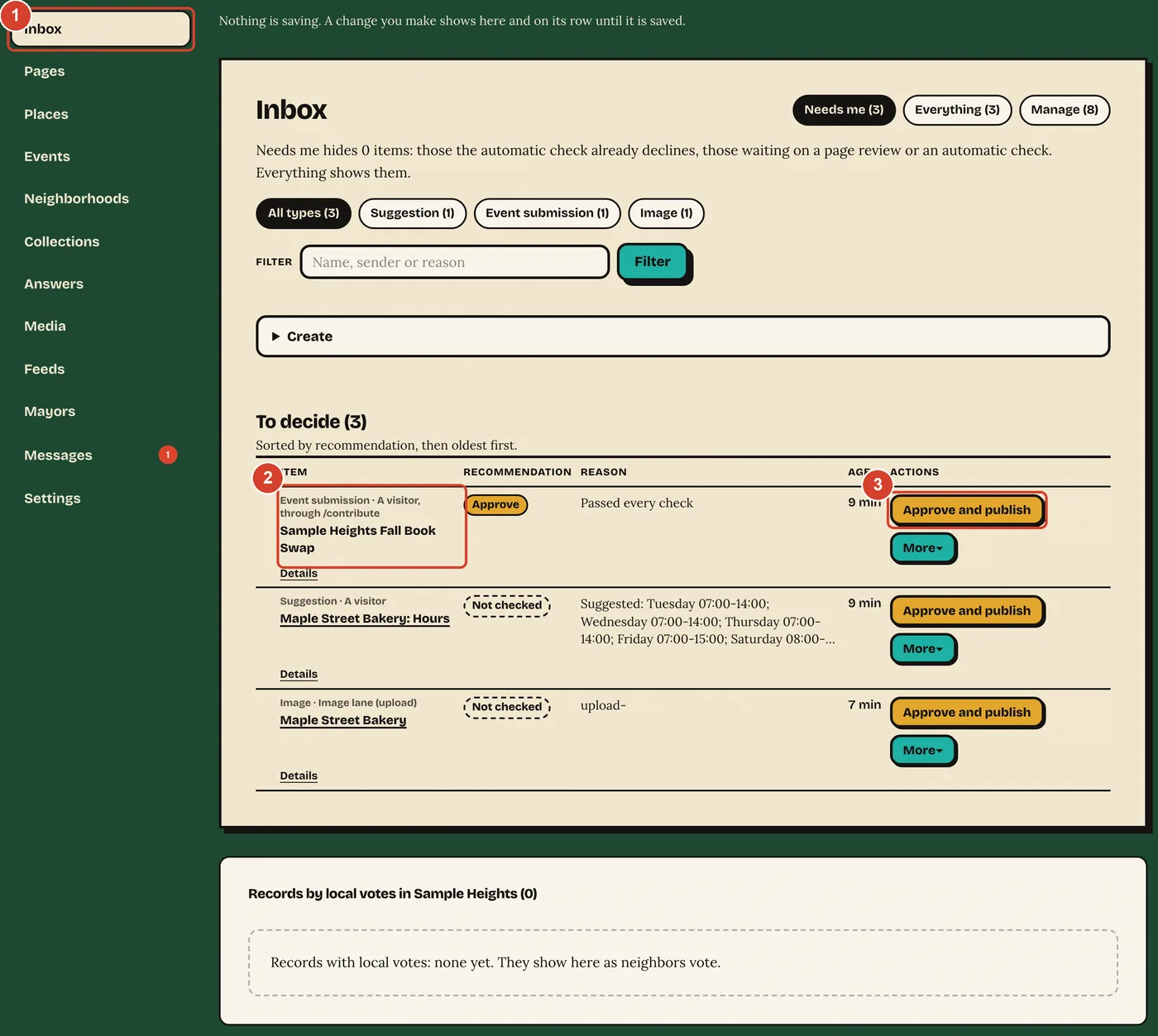
Events people send through the website wait in the Inbox as Event submission. Any Mayor can decide any event in Milwaukee County, not only events in your neighborhood.
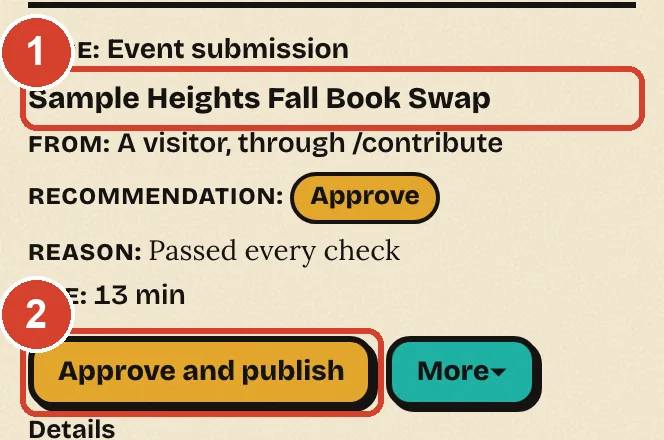
- In your Inbox, find the row that says Event submission.
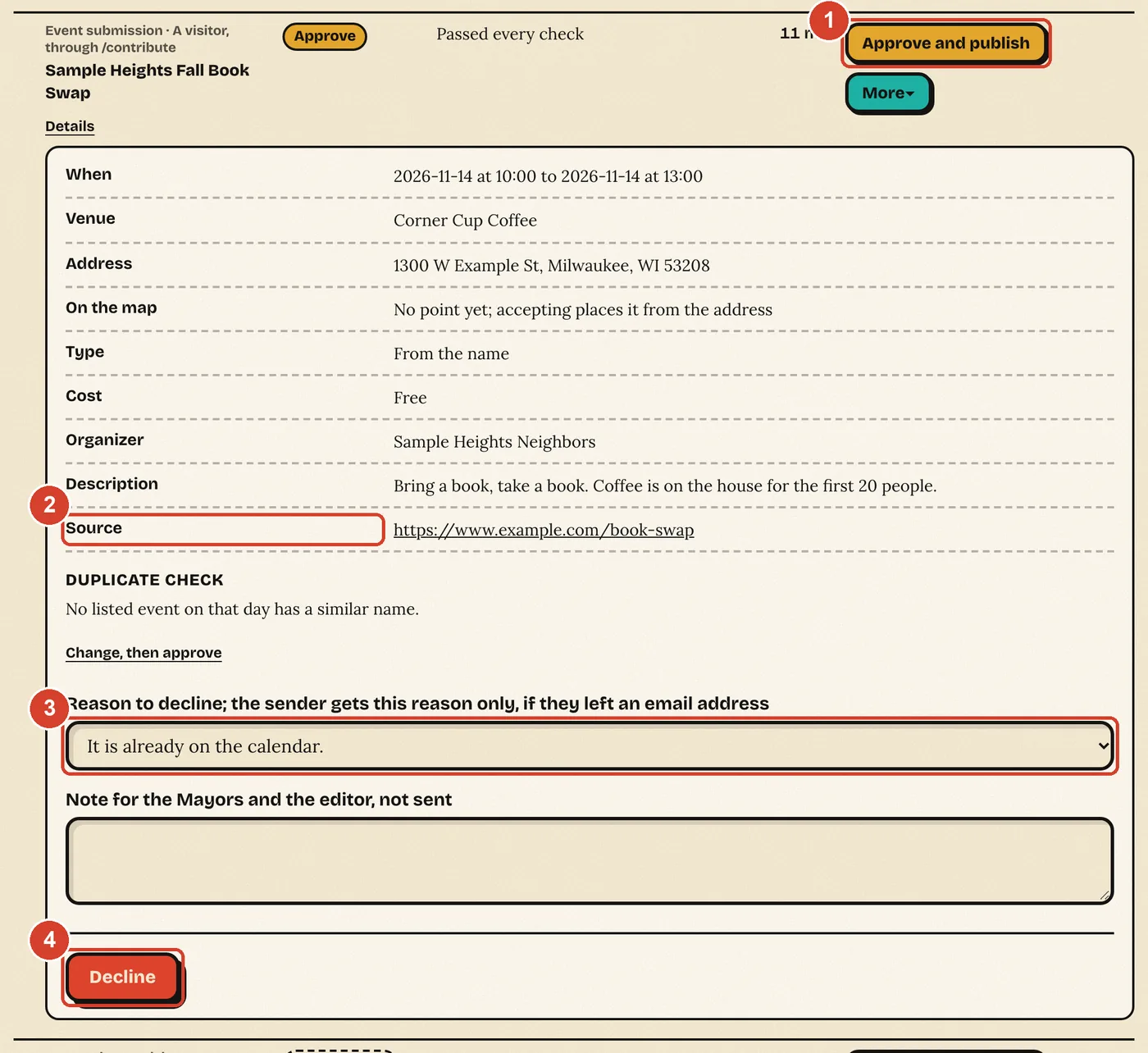
- Choose Details. Check the date, place and Source: open the organizer's page and make sure it shows this event on this date.
- If it all matches, choose Approve and publish. The event goes on the calendar right away.
- If something is off, choose Change, then approve to fix it first. To turn it down, pick a Reason to decline and choose Decline.
Example: someone sent "Sample Heights Fall Book Swap" for November 14 at Corner Cup Coffee. The cafe's page lists the swap on that date, so you approve it. If the cafe's page shows no book swap, you decline with the reason "The organizer's page does not show this event or its date."
The sender gets only the reason you picked, and only if they left an email address. The Note for the Mayors and the editor is never sent to them.
Add an event
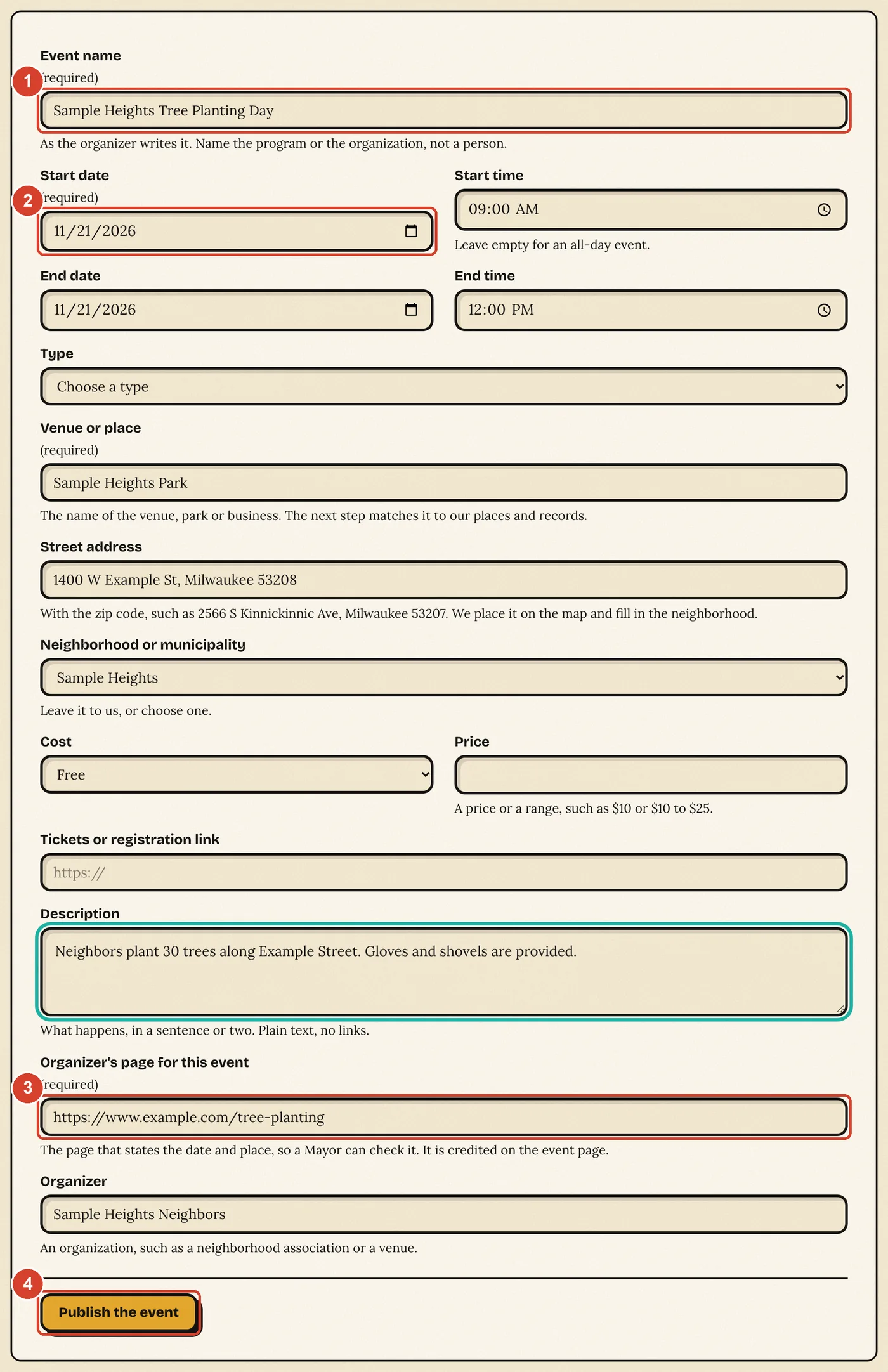
- Open Events on your desk and choose Add event.
- Fill in the event name, the start date and time, the venue and the street address.
- Paste the Organizer's page for this event: a page that states the date and place, so anyone can check it.
- Choose Publish the event.
Example: "Sample Heights Tree Planting Day", Saturday November 21, 9 a.m. to noon, at Sample Heights Park, with the neighborhood association's page as the organizer's page.
Name the program or the organization, never a private person. The event goes on the calendar as soon as you save it, and it is logged with your name. From Events you can also edit or unpublish any event on the calendar.
Add a regular event feed
Many calendars publish a feed: a web address that lists their upcoming events. When you add a feed and the editor approves it, Little Milwaukee reads it each day and adds its new events.
- Find the calendar's RSS, Atom or iCal address. Look for a link named RSS, iCal, Subscribe or Add to calendar on the calendar's page.
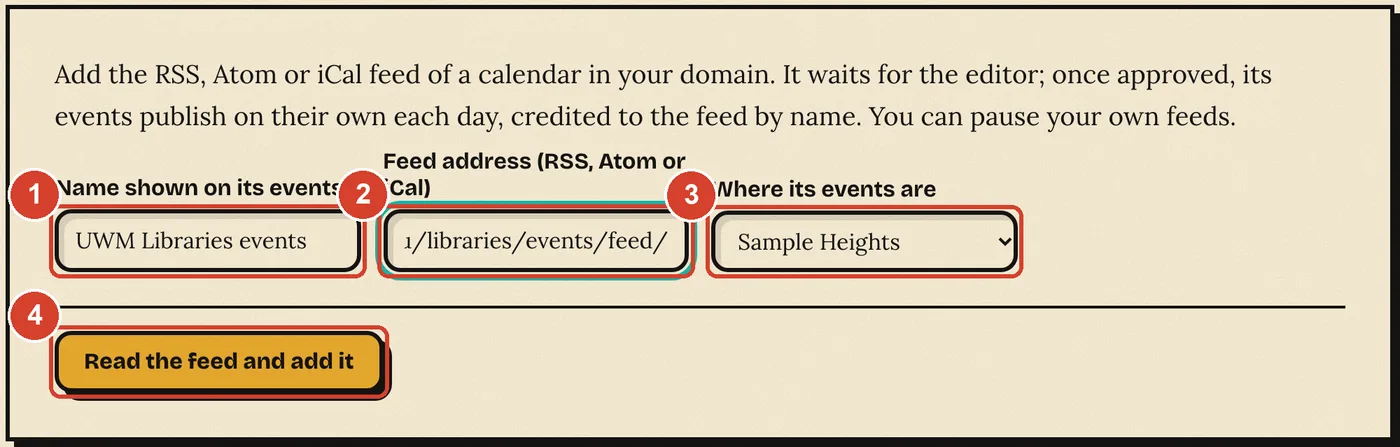
- Open Feeds on your desk.
- Under Name shown on its events, type the calendar's name. Paste the address under Feed address.
- Choose Read the feed and add it.
Example: the UWM Libraries events calendar publishes its events at https://uwm.edu/libraries/events/feed/. Name it "UWM Libraries events" and paste that address.
A feed you add waits for the editor. Each event from the feed shows the feed's name. You can pause a feed you added.
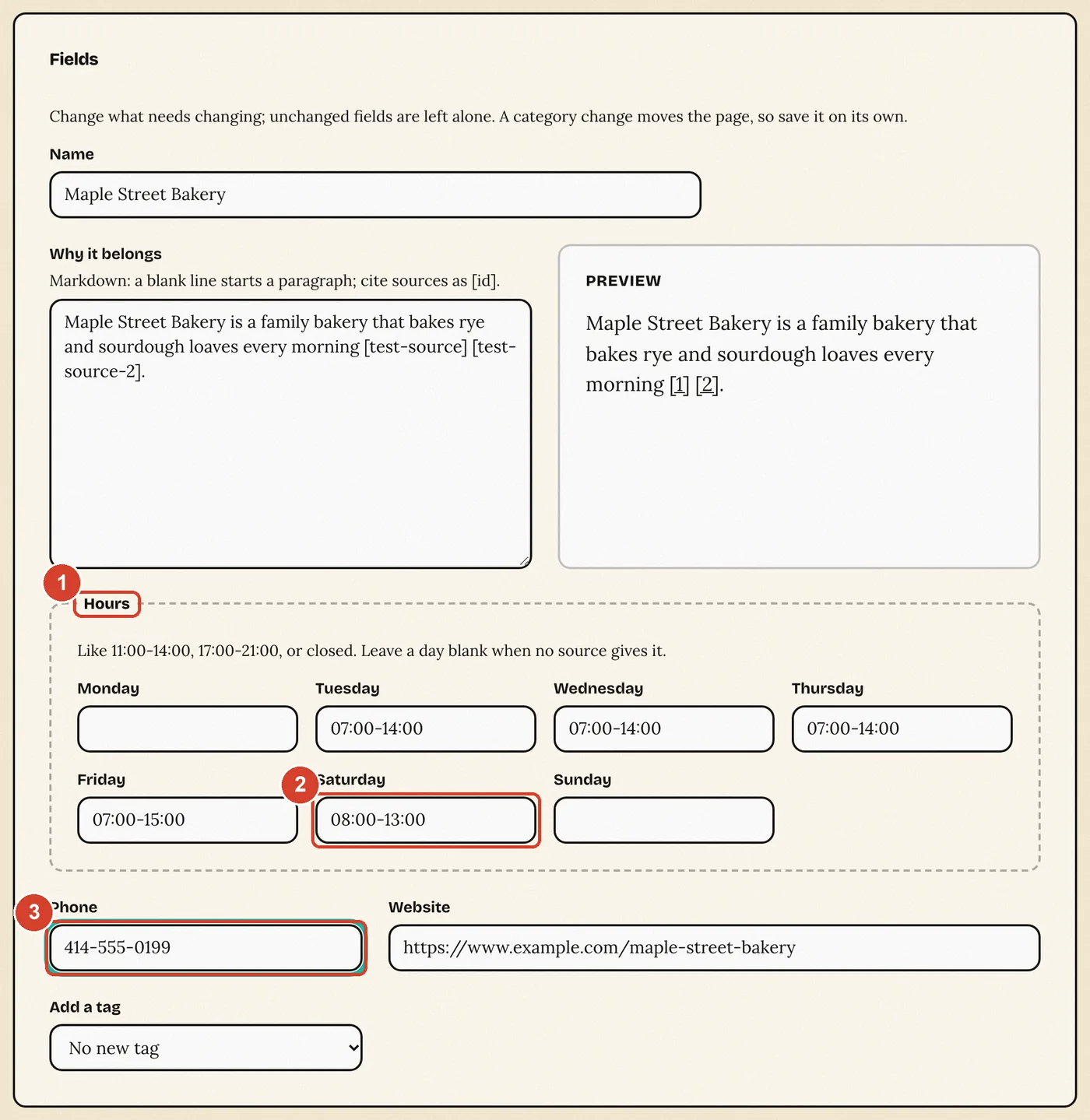
Fix a business's hours or phone number
- Open Places on your desk and choose the business.
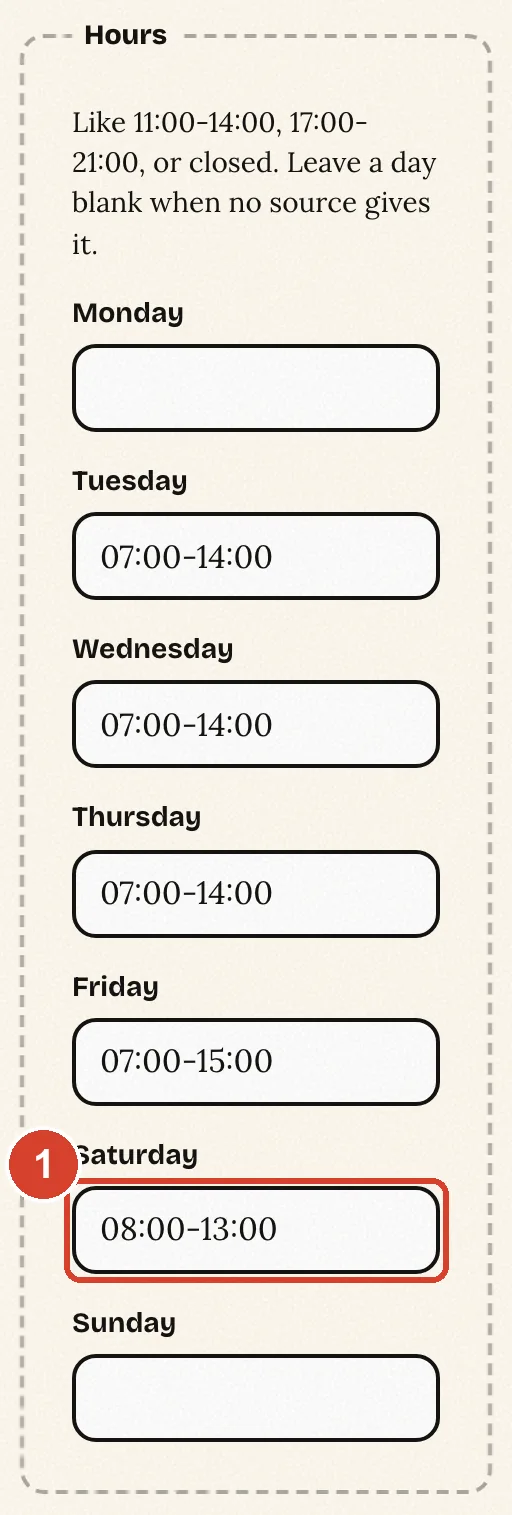
- Under Hours, change the day that is wrong. Write times like 07:00-14:00, or the word closed. Leave a day blank when you don't know it.
- Change the Phone or Website if needed.
- Under Sources, add where you saw the new facts, such as the business's own website.
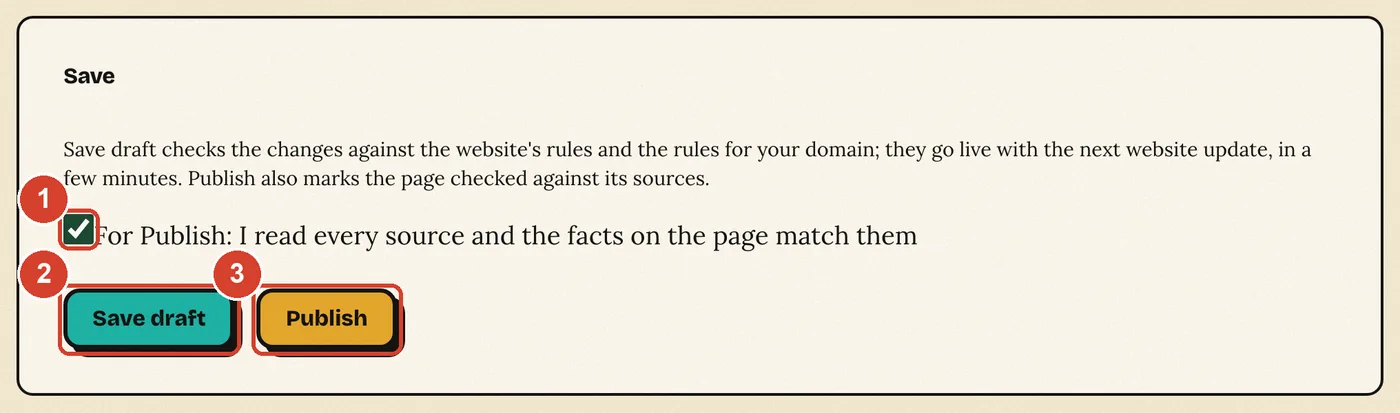
- Choose Save draft. Or check the box that says you read every source and the facts match, then choose Publish.
Example: Maple Street Bakery's door now says Saturday 8 to 1. Change Saturday from 07:00-15:00 to 08:00-13:00 and publish.
Your change shows on the website after its next update, a few minutes later.
Add a new place from the city's business list
Start from the city's license and business lists, so the new page uses the name and address the city has on file.
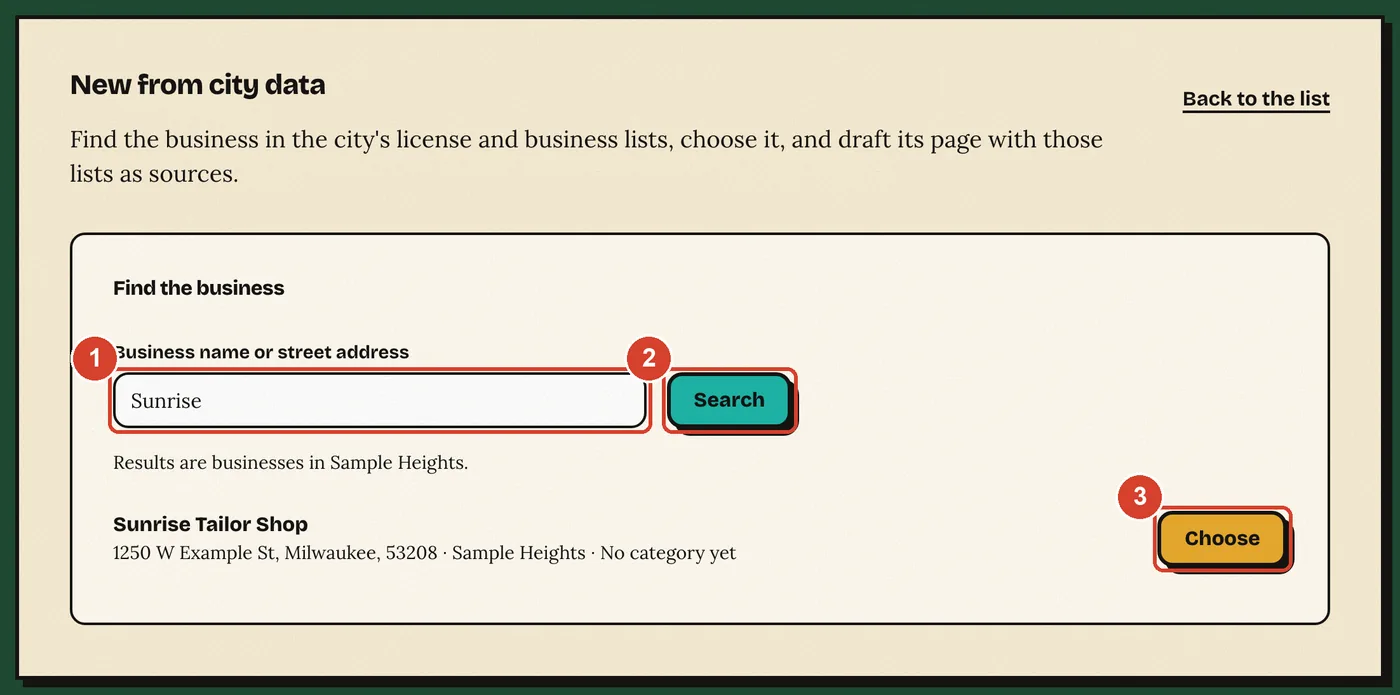
- Open Places on your desk and choose New from city data. You can also open Create in your Inbox and type the name under Business name or street address.
- Type the business name and choose Search. Only businesses in your neighborhood show.
- Choose the business. Its name and address fill in.
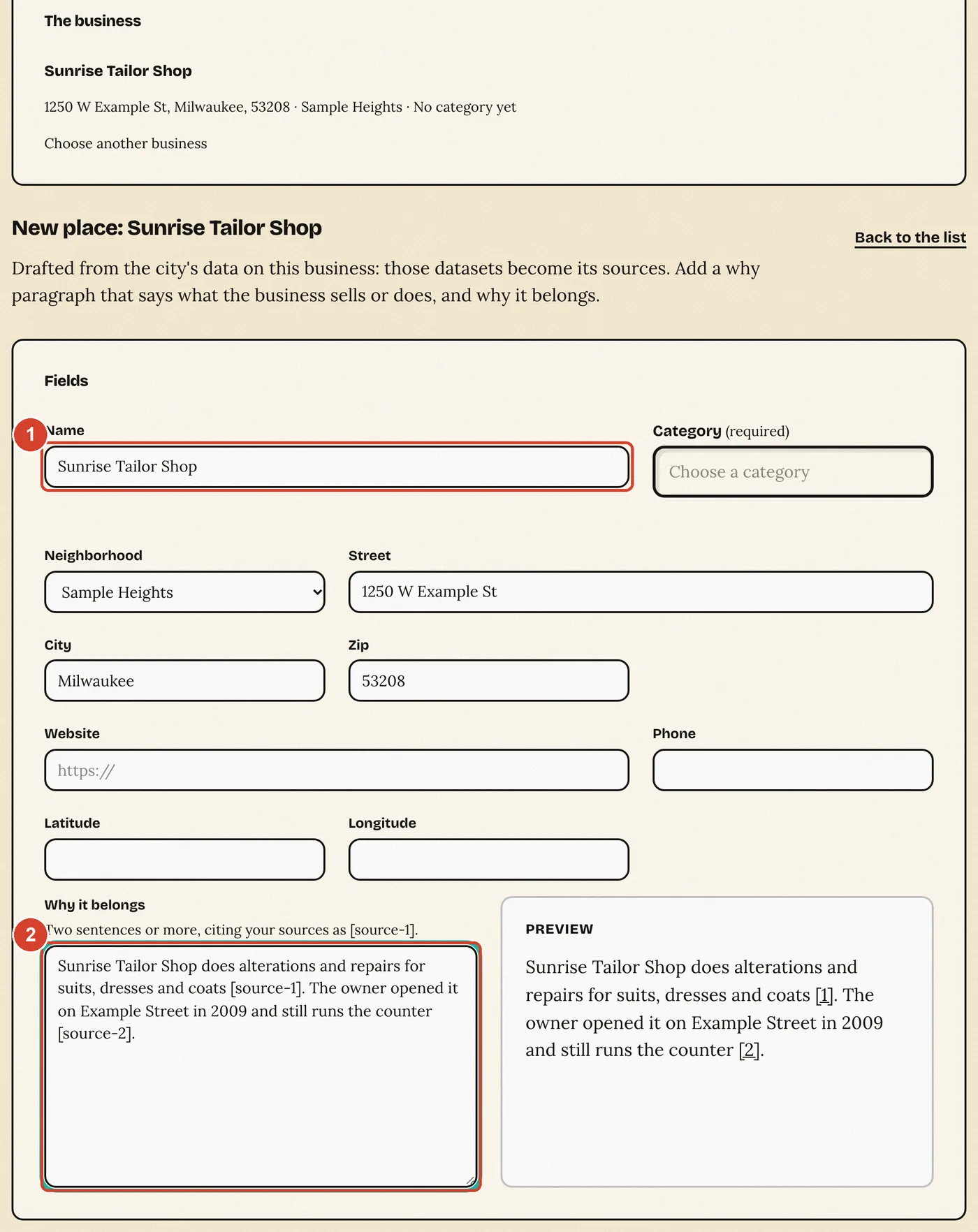
- Pick a Category and write Why it belongs: two sentences or more about what it sells or does, with your sources.
- Choose Save draft.
Example: search "Sunrise" to find Sunrise Tailor Shop, choose it, pick a category, and write that it does alterations and repairs and that the owner still runs the counter.
A new place starts as an unlisted draft. An automatic check reads it, and the editor lists it.
Approve a photo
Photos of your places wait under Media as Candidates. New ones also show in your Inbox.
- Open Media on your desk.
- Look at the photo, the place it is for, and who took it.
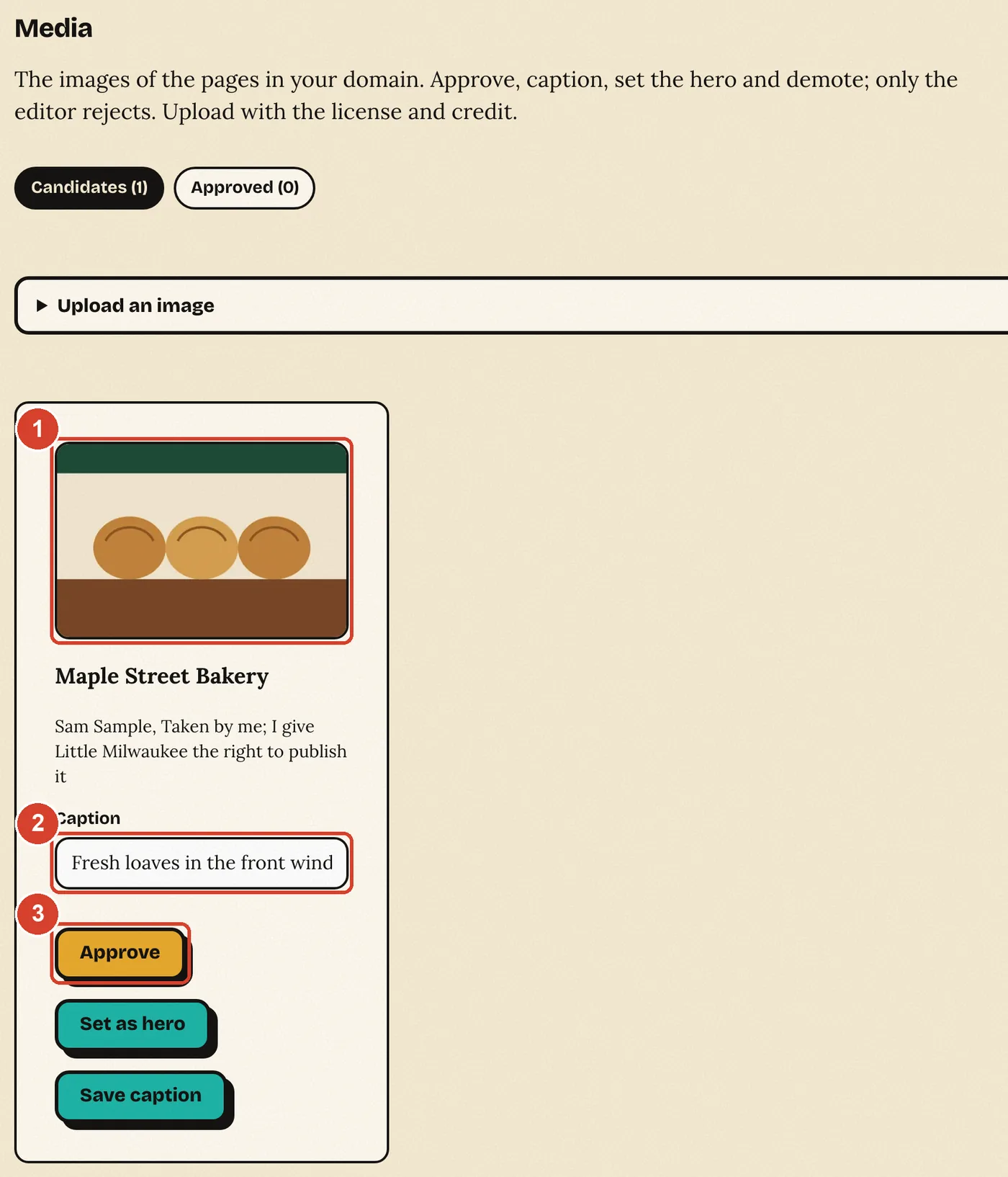
- Type a short caption if it needs one and choose Save caption.
- Choose Approve. To make it the main photo of the page, choose Set as hero.
Example: a candidate photo of fresh loaves in Maple Street Bakery's window, taken by the owner. Caption it "Fresh loaves in the front window" and approve it.
You can also upload a photo you took: choose Upload an image, pick the page, and give the credit and license.
Reply to a suggestion
Anyone can suggest a change to a page with the pencil next to a fact. Suggestions for your neighborhood wait in your Inbox.
- In your Inbox, find the row that says Suggestion and choose Details.
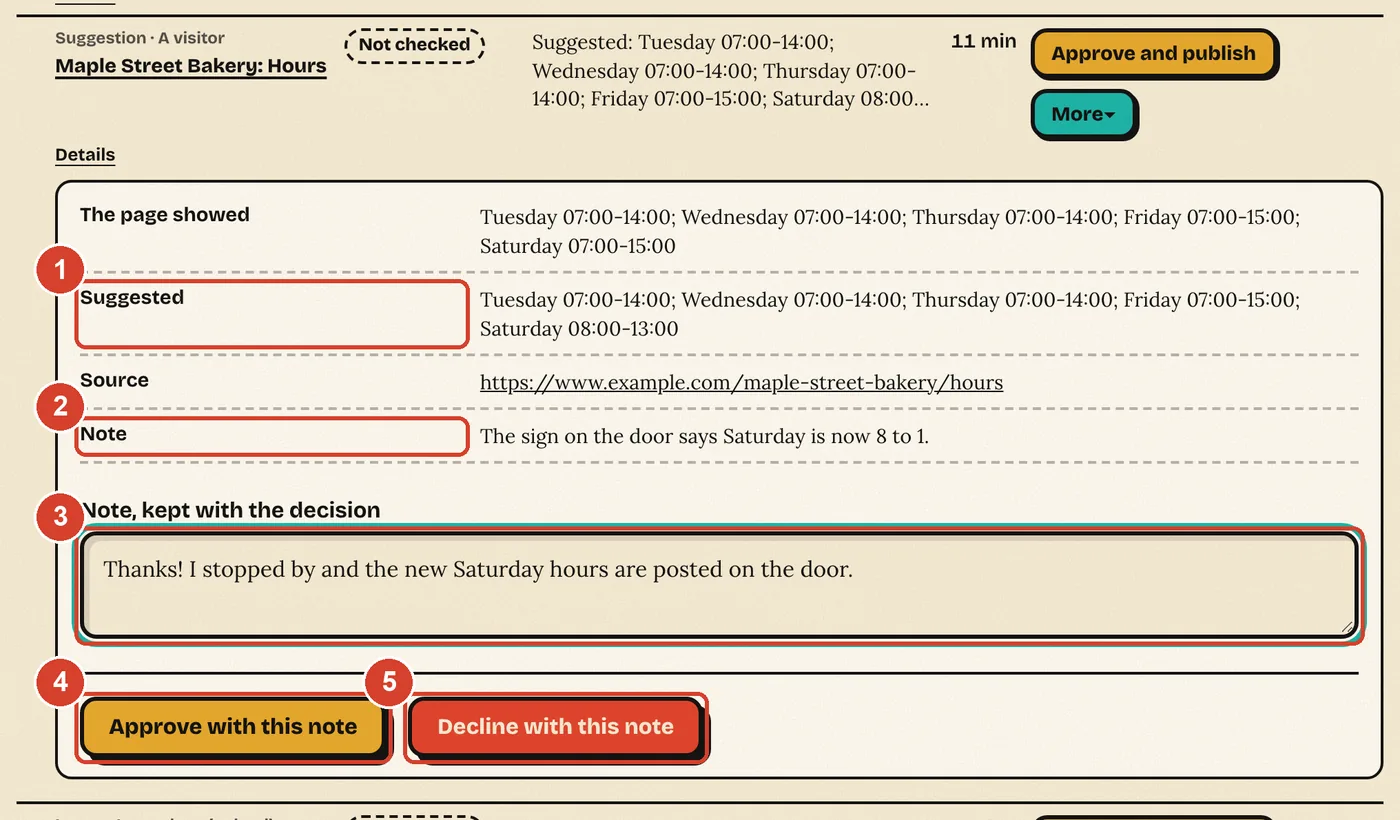
- Compare The page showed with Suggested, and open the Source.
- Write a short note under Note, kept with the decision.
- Choose Approve with this note or Decline with this note.
Example: a neighbor says Maple Street Bakery now opens at 8 on Saturday, and the note says the sign on the door changed. You walk by, see the sign, and approve with the note "Thanks! I stopped by and the new Saturday hours are posted on the door."
If you leave a suggestion for 7 days, it moves to the editor.
Use the Mayor message board
Messages on your desk is a board for Mayors and the editor. Only signed-in Mayors and the editor can read it. It never shows on the public website.
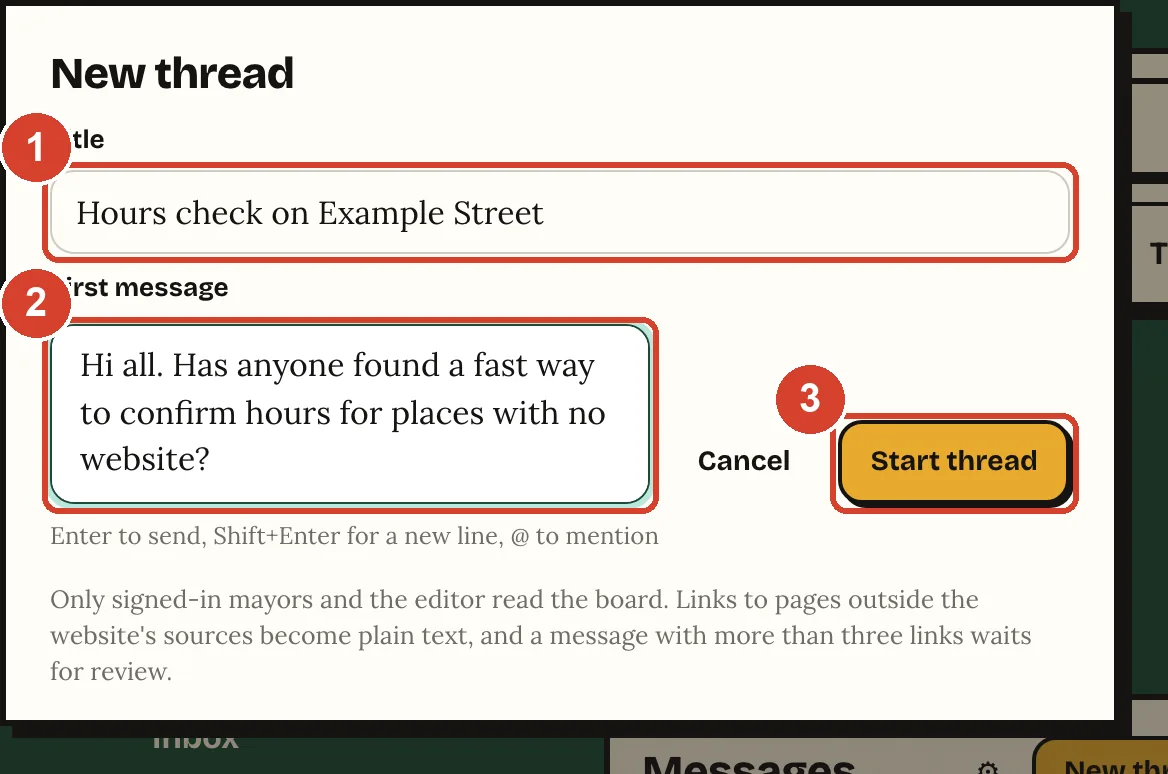
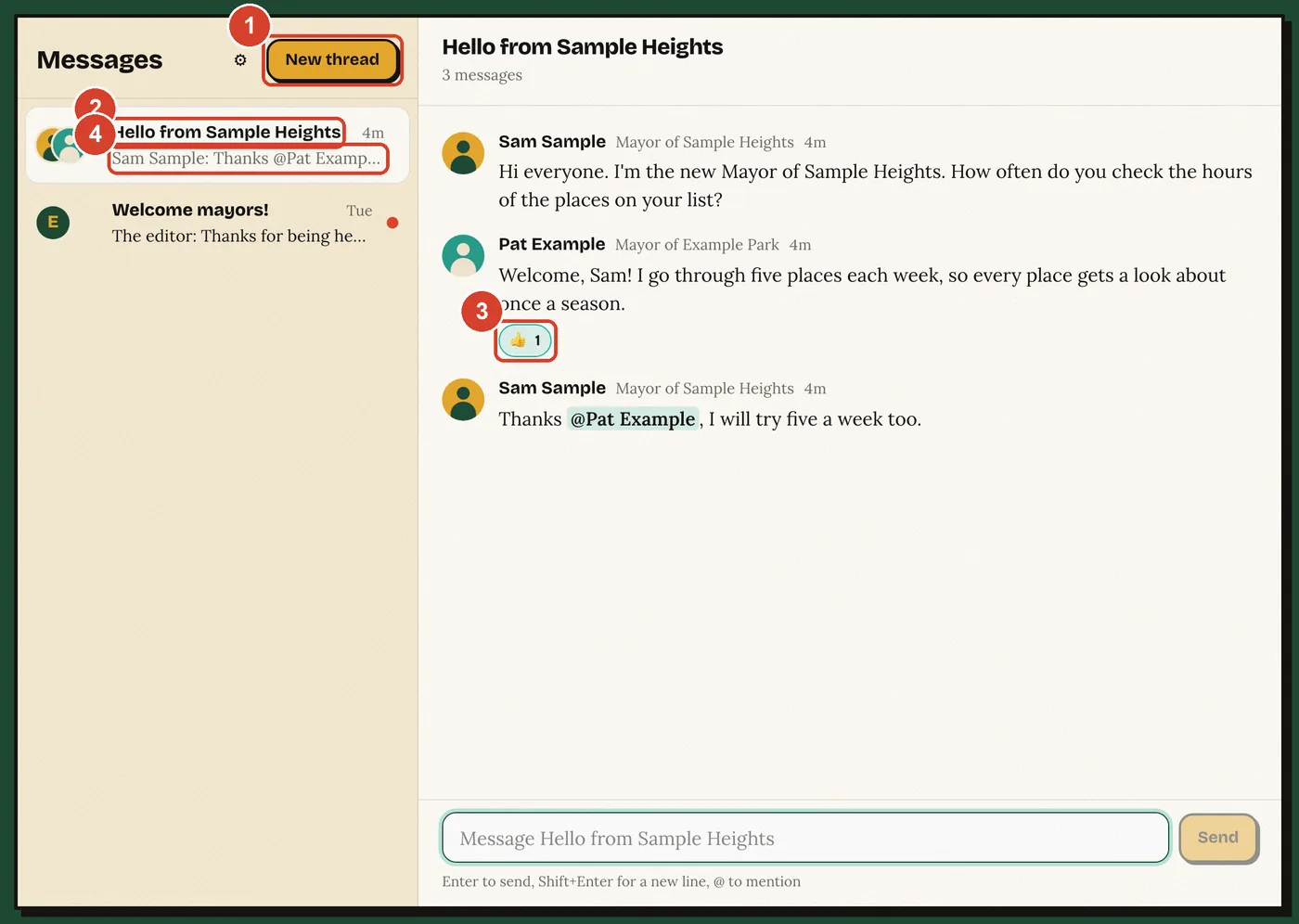
- Post: choose New thread, give it a title, write the first message and choose Start thread.
- Reply: open a thread, type in the box at the bottom and press Enter. Shift+Enter starts a new line.
- React: point at a message, choose the smiley face and pick a reaction.
- Mention: type @ and the first letters of a Mayor's name, then pick them from the list. They see an @ next to the thread.
- Email: the gear next to Messages turns on email when someone replies to you or mentions you.
Example: Sam asks how often other Mayors check hours. Pat, the Mayor of Example Park, answers "five places each week". Sam gives it a thumbs up and replies "Thanks @Pat Example, I will try five a week too."
A message with more than three links waits for the editor before others see it.
See your work on your public Mayor page
Every Mayor has a public page with the badge photo, the line under Why I am the mayor, the start date, and three counts: suggestions accepted, pages created and pages verified. Find yours from your neighborhood's page or the Neighborhood Mayors list.
The counts change each time the website is updated. An action the editor undid is not counted.
What Mayors can't do
- Delete a photo. You can approve a photo or choose Demote to move it back to the candidates. Only the editor removes a photo, because removing it deletes the file for good.
- Change who owns a business, or whether it is locally owned. Your edit form has no field for it, because the editor checks ownership against public sources. To change a place's address, category or neighborhood, send a suggestion from the place's page.
- Edit a claimed page. When an owner claims a business, the page belongs to the owner, and the editor makes changes to it.
- Change places outside your own neighborhood, because each neighborhood has its own Mayors. Events are the exception: any Mayor can decide on events across Milwaukee County.
Need one of these done? Ask the editor in Messages, or open Create in your Inbox and send A proposal to the editor.
Good judgment
List only locally owned places.
Yes A family bakery that has baked on the same corner for 30 years.
No A sandwich shop from a national chain, even if its manager lives down the street. A chain that started in Milwaukee and now has stores in other states is out too.
Never post private people's names.
Yes "Sample Heights Neighbors Book Swap", named for the group that runs it.
No "Dave's garage sale at 1234 Example St". Name the program or the organization, and never a private person or a home address.
Leave it out rather than guess.
Yes Leave Sunday blank when no sign or website gives Sunday hours.
No Fill in Sunday with the weekday hours because they are probably the same. If you can't confirm a place is locally owned, leave it unlisted and ask the editor.
The full rule for which places belong is the inclusion rule.
Common questions
How much time does this take?
You set the hours. The application asks how many hours a month you can give, and nothing on your desk has a deadline, except that an item you leave for 7 days moves to the editor.
What if I make a mistake?
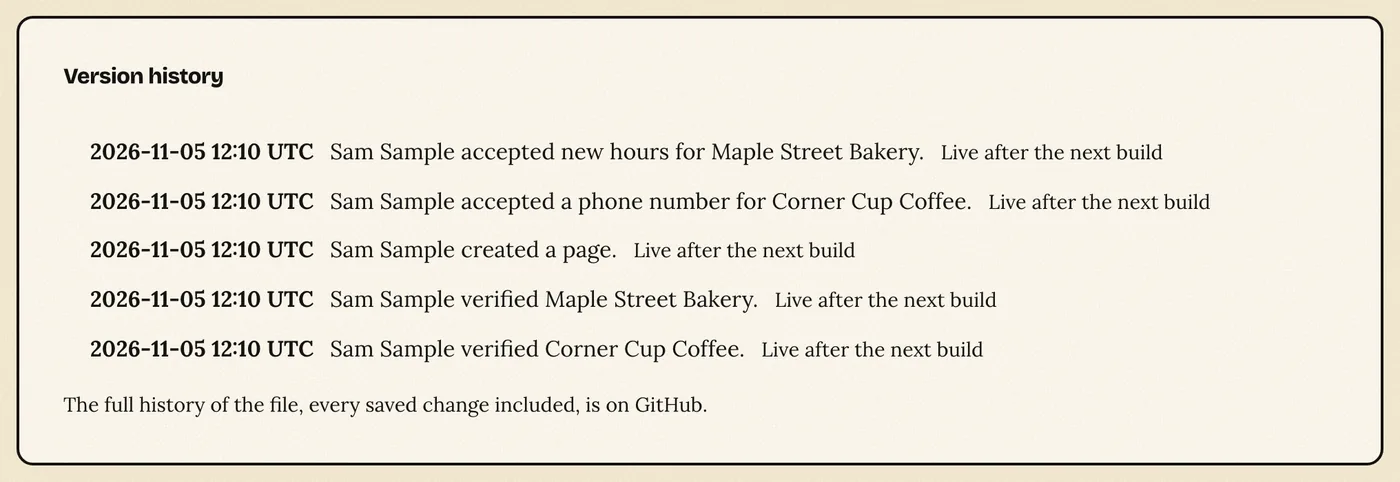
Changes have a history and can be undone. The edit page of each place lists its Version history. Tell the editor in Messages what went wrong, and the editor can undo your change.
Can an AI agent help me?
Yes. Under Create in your Inbox you can issue a Deputy token for an AI agent. A Deputy adds notes and drafts decisions, and nothing changes until you confirm a draft.
Can I step down?
Yes. Tell the editor in Messages. The editor ends your role. Your sign-in stops working, and your badge no longer shows on your neighborhood's pages.
Screens checked on 2026-11-05. Read this guide as markdown or JSON.